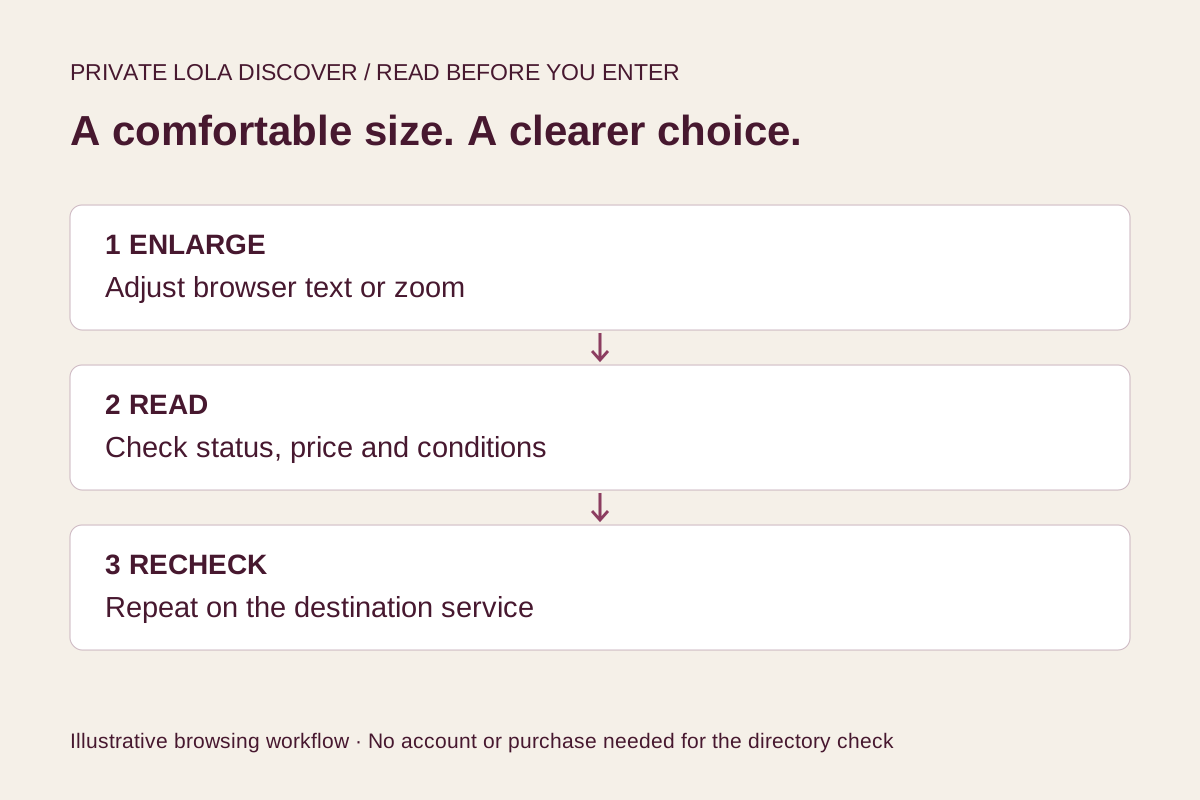
A useful check after a phone or browser change
A new phone, a browser update or a different display preference can change what feels comfortable to read. November is a useful time to check your everyday browsing setup before busy year-end routines. This is a current practical guide, not a claim that a particular phone update has broken PrivateLola or that more visitors have reported problems.
The question is simple: can you read the information you need before opening a room? Try the check while you are still browsing. You do not need to register, buy credits or enable your camera to decide whether the directory’s text and controls work for you.
Readability is personal. There is no percentage that makes every screen comfortable for every reader. Start from the size you actually need rather than trying to make all the cards fit above the fold. More scrolling is often a better trade than guessing what a small label says.
1. Enlarge the page before narrowing the choice
Open your browser’s zoom or text-size controls and make a small adjustment. In Chrome on Android, Google documents a Zoom control in the main menu, with additional options under Accessibility. Apple documents website text-size controls in Safari’s page menu. Menu labels can vary with language and software version; use the linked current instructions for your device.
Return to the directory and read a full card from name to room link. Make sure you can distinguish the listed price from the price label and the room status from the action that opens the room. The goal is to understand the information, not simply to make the portrait larger.
Try the search field and language filter as well. Can you read the selected value after making a choice? Can you see the reset option and the search result message? A comfortable reading size should still let you understand what selection is active.
Google Chrome Help: Change text, image and video sizes · Apple: Customize your Safari settings on iPhone
2. Check that enlarged words still fit
Reflow means content rearranges to fit the space available. W3C’s explanation describes the benefit of reading ordinary content without repeatedly scrolling in two directions. Some inherently two-dimensional content has exceptions. This article offers a personal usability check, not a formal WCAG audit or a claim that every destination service meets a standard.
At your chosen size, follow a sentence to its end. If words disappear behind a card edge, overlap another label or require repeated sideways movement, try changing the page orientation or use a larger screen if one is available. Do not shrink the page below your comfortable size just to reach an important condition.
If a table needs horizontal scrolling, look for its column headings before relying on a value. A number separated from its heading can become ambiguous. Stop if you cannot establish what it describes; the interface should not make you infer a billing unit or an access requirement.
3. Read status, price and action as separate things
This directory presents provider-supplied information. A room’s current status can change, and a listing does not reserve access. Read the status label, then identify the action you are about to take. Opening a room is a move to a different service context, not a promise that a paid session has already started or that a particular performer will be available.
Treat the listed credit amount as information that needs context. Our credits and prices guide explains why a credit quantity is different from a cash total. Before paying, read the destination’s billing unit, current price and applicable conditions at a size you can comfortably understand. This article does not quote a tariff or predict a final bill.
A useful habit is to say the action back to yourself: “I am opening the room to check its current information.” That short pause keeps a large image or prominent button from standing in for the terms you still need to read.
4. Repeat the check after leaving the directory
A page that is readable here does not establish how the room service will behave. After following a room link, check the destination address and your text size again. Read the account or purchase conditions there before entering information. If your browser remembers a preference for one site, do not assume it has applied to every other site you open.
Browser reading modes can simplify some articles, but a simplified view should not replace the full page when you need forms, room controls or current conditions. If an important control is missing or the text remains clipped, use the service’s official help route before proceeding. Avoid sending payment information, identity documents or private conversations to the directory to demonstrate a display problem.
For a useful issue report, describe the device, browser, approximate zoom setting and the label that is hard to read. A neutral description often helps more than an uncropped screenshot containing sensitive material. You can also choose to return later on a different screen. Pausing is a reasonable outcome when the information needed for an informed choice is not readable.